How To Create AI Video
Creating a new faceless AI-powered short video in ShortsNinja is simple and fast. This guide walks you through the full creation process — from writing the script to customizing the visuals and audio.
Step 1: Start From the Video Page
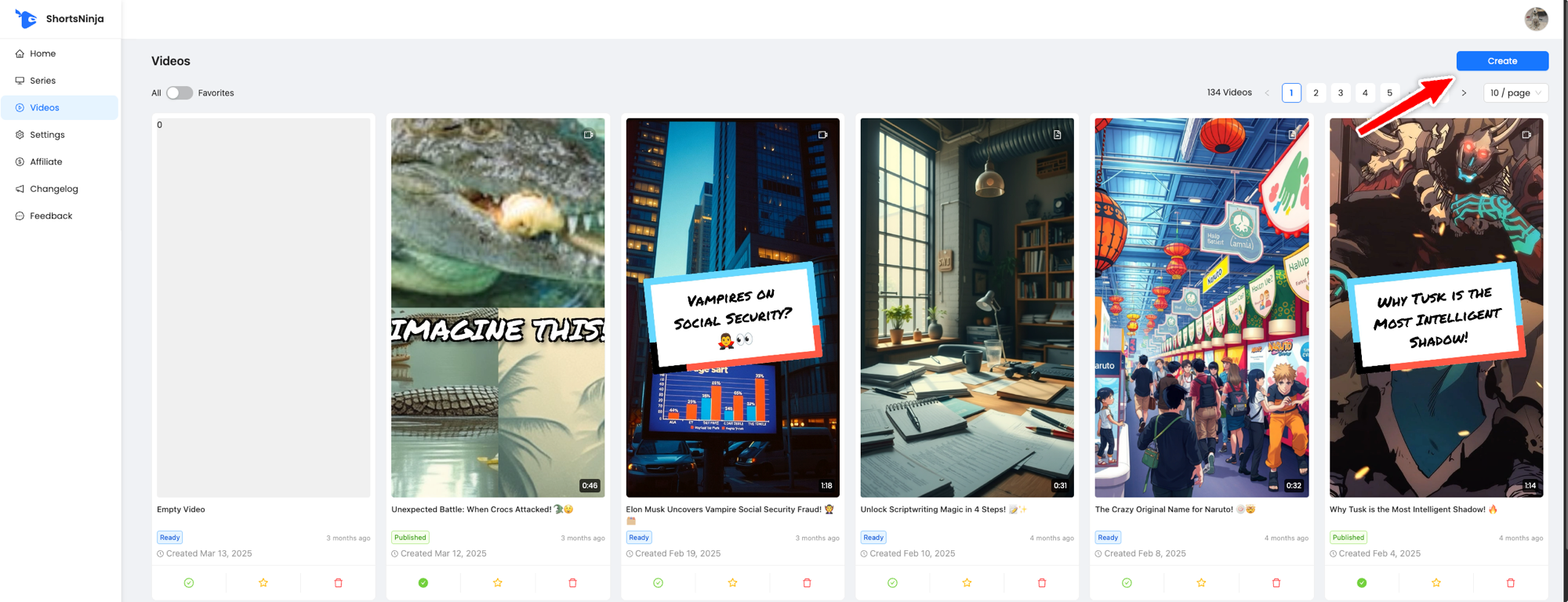
Navigate to the Videos tab on the left-hand menu.
Click the blue “Create” button on the top right.
Or go directly via this link.
Step 2: Add Your Script
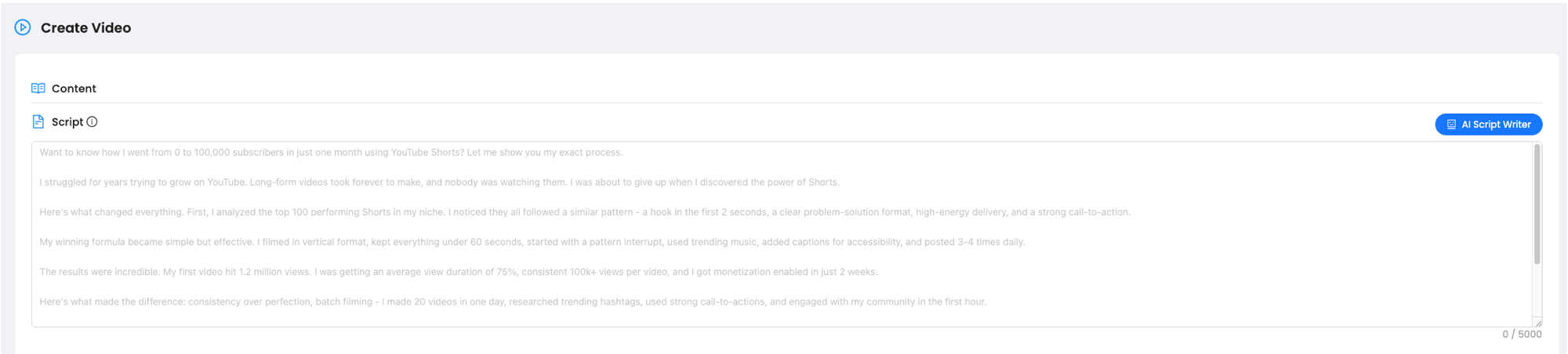
Paste your video script in the Script section.
You can also use the AI Script Writer button if you want ShortsNinja to auto-generate your script from a topic idea.
Step 3: Choose Language ( 50+ Languages)

Select your spoken language for voiceover and subtitles (e.g., English).
Step 4: Pick Visual Style
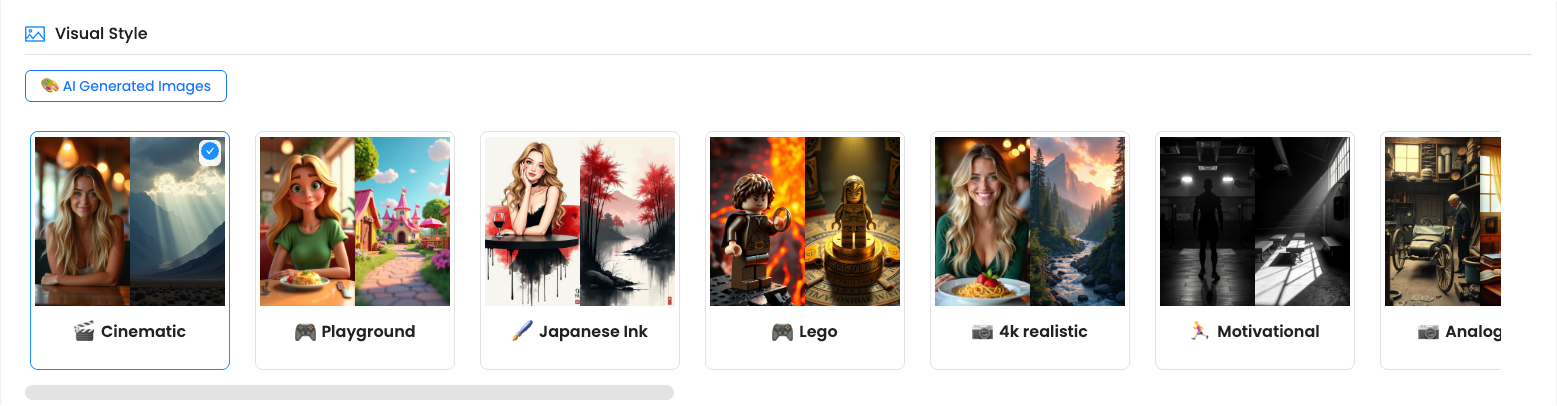
Choose from styles like:
🎬 Cinematic
🎮 Playground
🖌️ Japanese Ink
📸 4K Realistic
🎨 Cartoon
🧩 Collage
These styles determine the look of the AI-generated visuals.
Step 5: Select Voiceover and Music
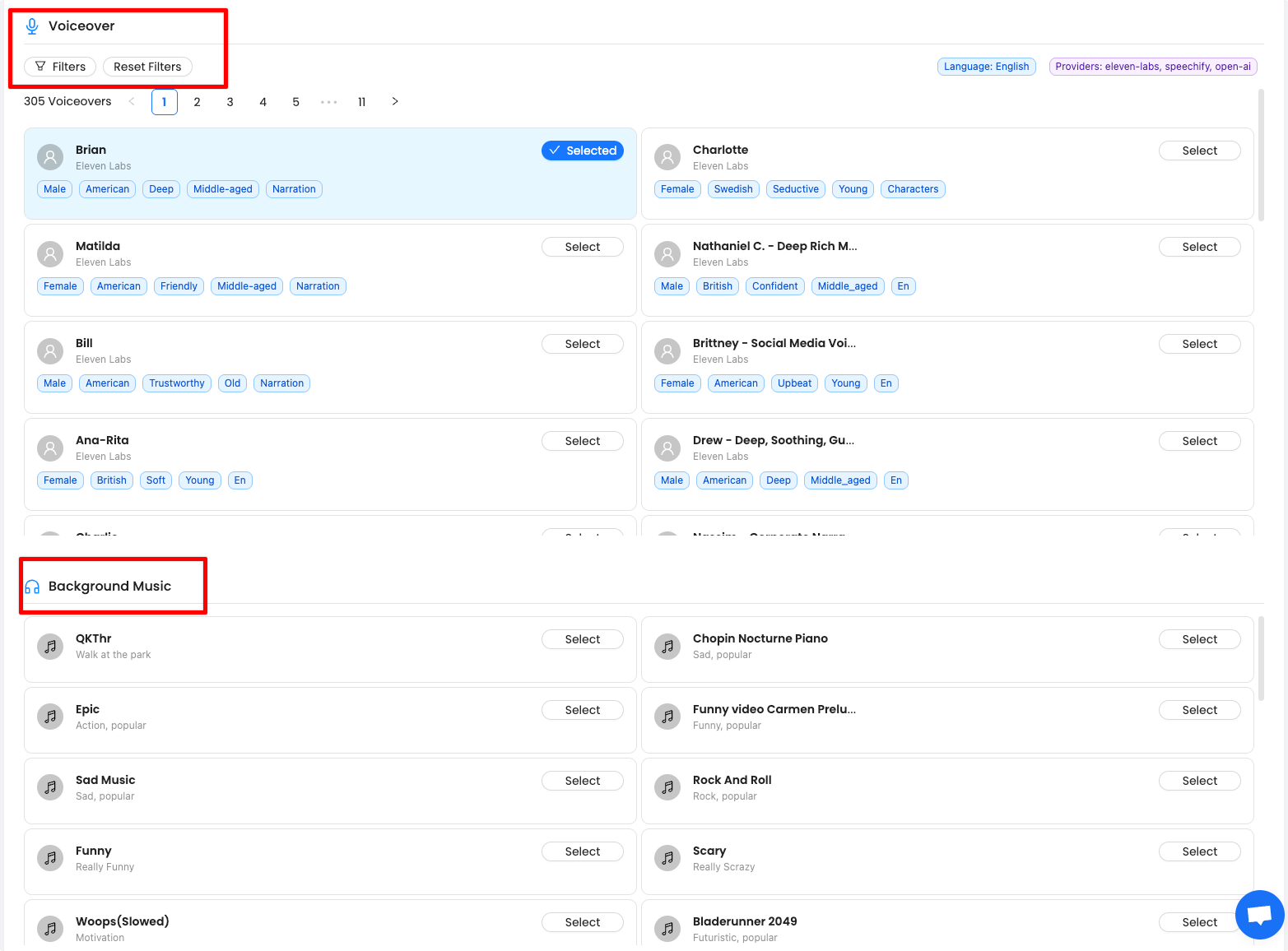
Browse over 300+ voices. You can filter by gender, tone, and provider (e.g., ElevenLabs, OpenAI, Speechify).
Click Select next to the voice that fits your video tone.
Scroll down to choose Background Music — from calm piano to energetic beats.
Step 6: Customize Video Settings
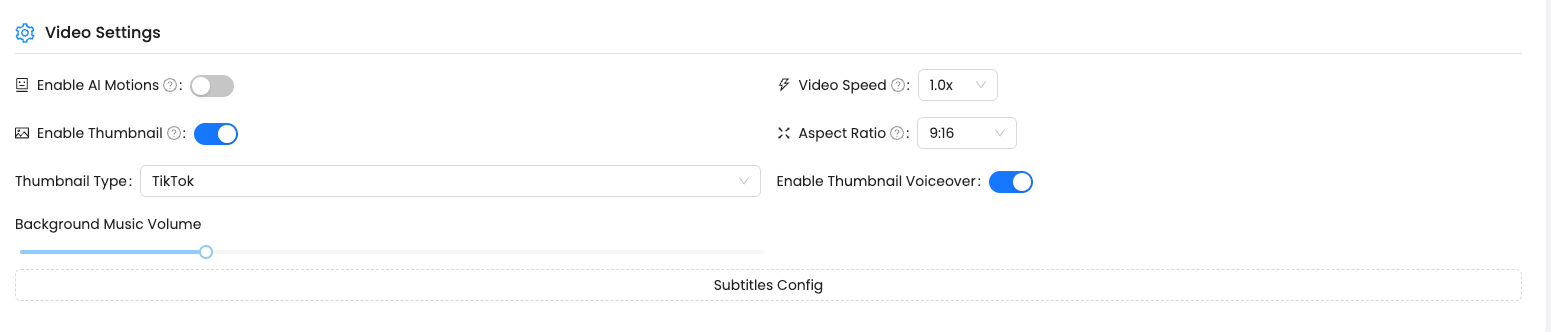
Enable AI Motions: Add light zoom/pan movement to make visuals feel alive.
Enable Thumbnail: Auto-generate a scroll-stopping thumbnail.
Thumbnail Voiceover: Optionally add voice to the thumbnail.
Set Video Speed: Choose 1x (normal), 1.25x, etc.
Set Aspect Ratio: 9:16 is ideal for TikTok, Reels, and Shorts.
Subtitles Config: Customize your subtitles or choose one of the predefined presets.
Step 7: Click "Create Video" ( At the bottom)
Once everything looks good, scroll down and hit Create Video.
Your video will begin processing — you'll see it listed in your Videos tab once ready.
Was this helpful?
Still need help? Ask the team